



In this article, we will discuss how to add a computer to a domain in Windows using various methods.
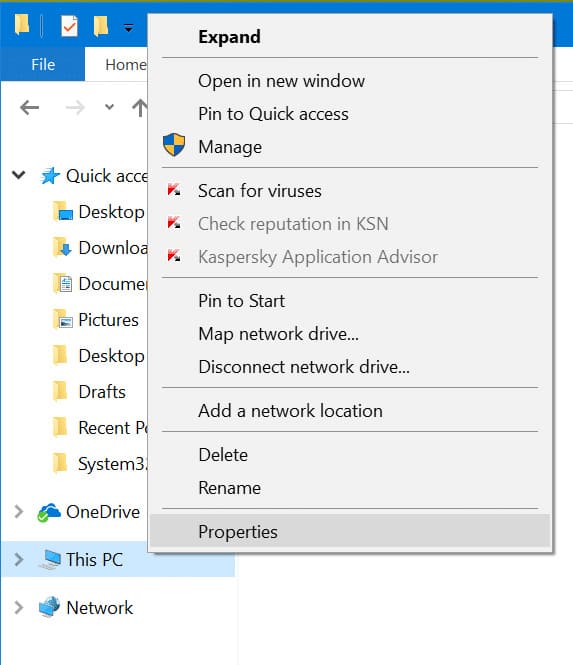
Navigate to any folder => This PC («Computer» if Windows 7) => Right-click on this menu => Properties.
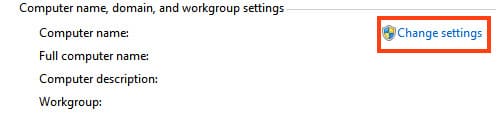
In the «System Properties» menu, click on «Change settings.»
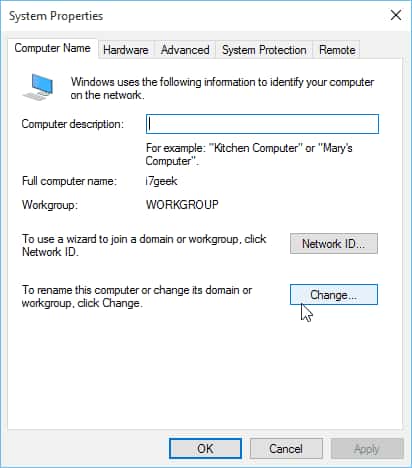
Next, in the new window, on the «Computer Name» tab, click «Change.»
In the «Computer Name/Domain Changes» window, select the «Domain» radio button and enter your domain. Then click «OK.»

Open Command Prompt as an administrator and enter the following command:
netdom join %computername% /domain:yourdomain.name /userd:dmosk\admin /passwordd:pass
Where:
computername: The name of the PC you’re adding to the domain.
yourdomain.name: Your domain.
admin /passwordd:pass: Administrator login «admin,» your password «pass.»
Open PowerShell as an administrator and enter the following command:
Add-Computer -DomainName yourdomain.name -Credential dmosk\kdo
Where:
yourdomain.name: Your domain.
After pressing Enter, you’ll be prompted to enter the password for the account. Enter it and wait for the procedure to complete. Then, restart your PC.