





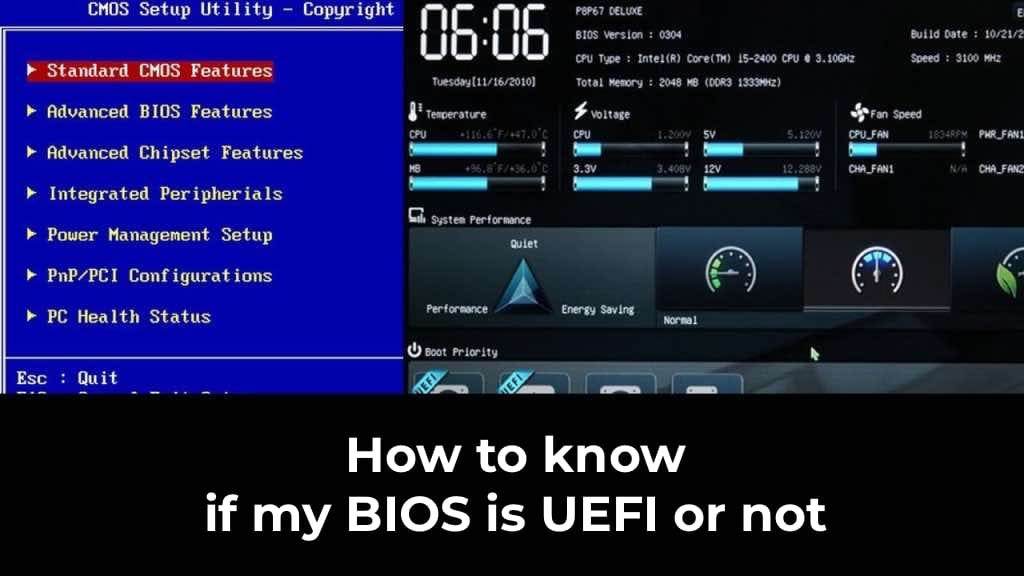
In this article, we will explain how to find out whether your operating system is running in UEFI or BIOS mode.
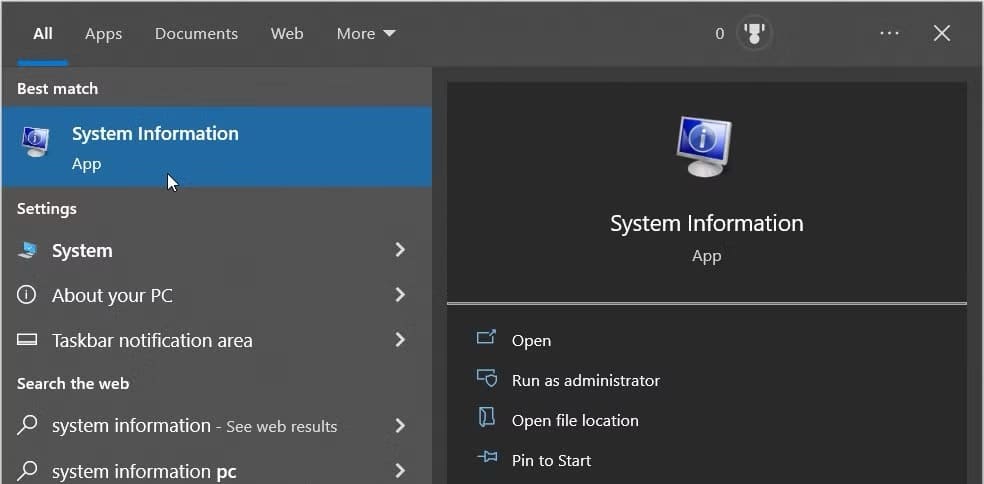
To check the mode in which the Windows operating system is running, you can use the ‘System Information’ utility. There are three ways to open it:
1. In the ‘Start’ menu, type ‘System Information’ in the search bar and launch the found utility.
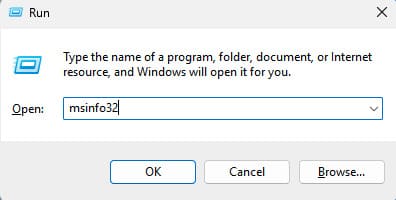
2. Press and hold the Win + R keys, and in the appearing ‘Run’ window, enter the command:
msinfo32
Then click ‘OK’.
3. Open the Command Prompt or PowerShell and enter the command:
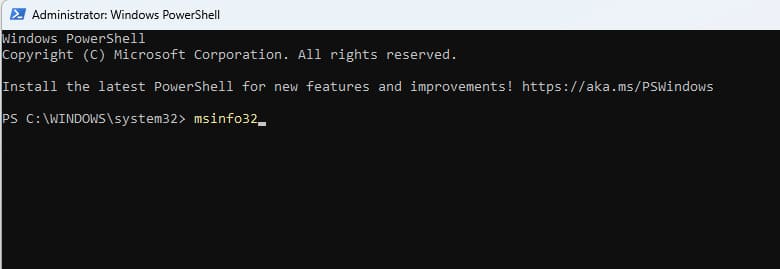
msinfo32
Press the Enter key.
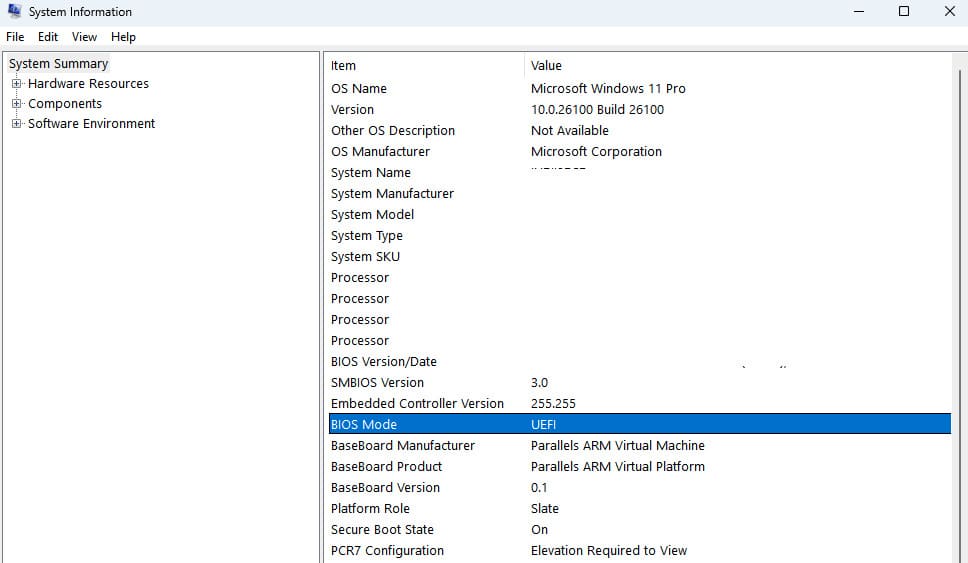
After performing these actions, the ‘System Information’ utility will open, where you can find the line ‘BIOS Mode’. If the operating system is running in standard BIOS mode, it will indicate ‘Legacy’. If the system is running in UEFI mode, it will indicate ‘UEFI’.
Another Method via Command Prompt
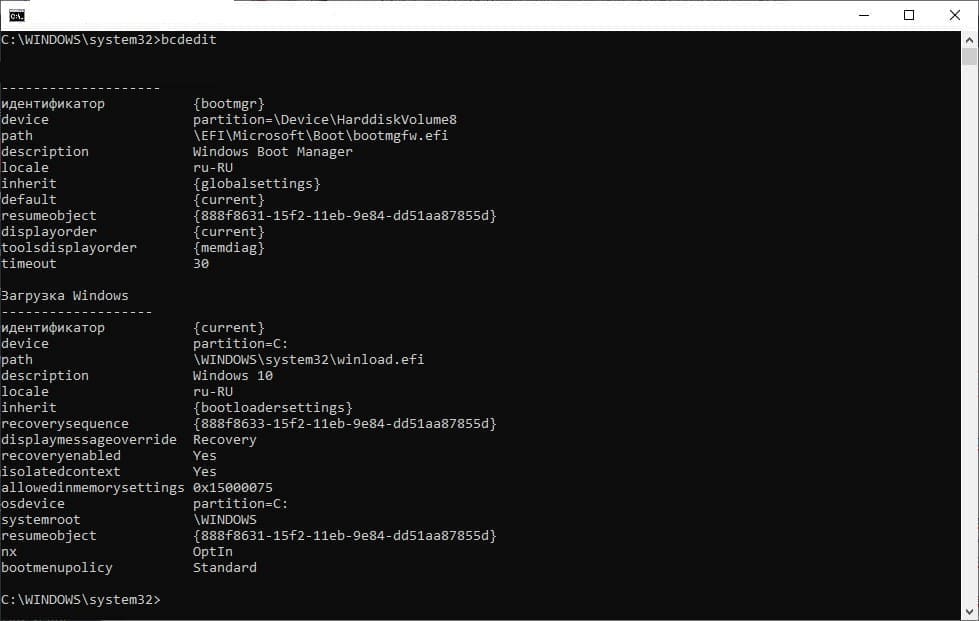
Additionally, you can use the Command Prompt run as administrator. In it, execute the following command:
bcdedit
In the command output, find the line ‘Path’. If the line ends with the .efi extension, then the operating system is running in UEFI mode.
Linux: Determining BIOS or UEFI Mode
In the Linux operating system, the easiest way to check is through the terminal. Execute the following command:
ls /sys/firmware/efi
If the system is running in UEFI mode, you will see a list of files in this directory. If the system is installed in Legacy/BIOS mode, an error message will appear, as the /sys/firmware/efi directory exists only in UEFI Linux systems.