


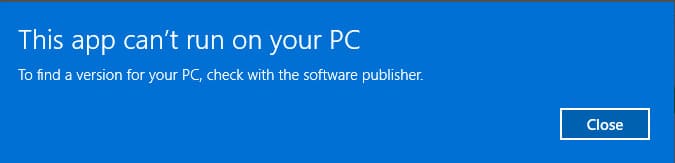
In this article, we will explain what to do if you encounter the message: “This app can’t run on your PC. To find a version for your PC, check with the software publisher.” when trying to launch a game or an application.
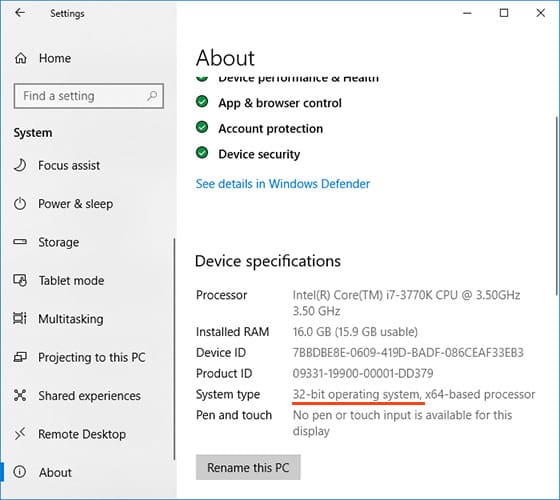
This often happens because you have a 32-bit system installed. To check the system bitness, go to “Settings” => “System” => “About” (or “About This PC”). If you have a 32-bit system and you are trying to run a 64-bit application, you will receive this message.
Here’s what you can do:
1. Search for a 32-bit version of the application:
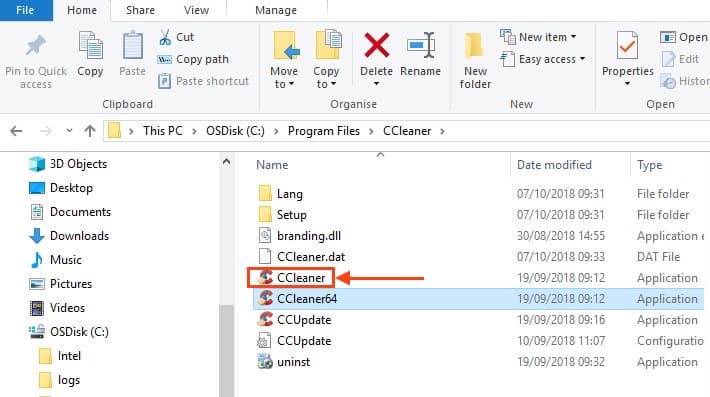
– In the application folder or on the developer’s website, there are often two files: one marked “64” (for a 64-bit system) and another without it. Launch the file without the “64” mark.
– If the site lists download types, look for an application marked “x86” – this indicates a 32-bit version.
2. Compatibility mode:
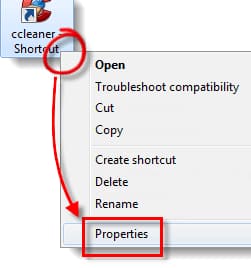
– If the application supports compatibility mode, try running it in this mode. Right-click on the executable file or shortcut, select “Properties” -> “Compatibility”, and set the compatibility mode to one of the previous versions of Windows (e.g., Windows 7).
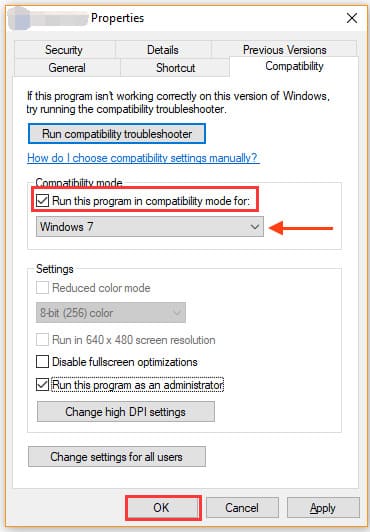
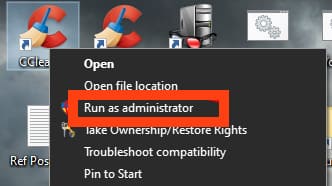
3. Run as administrator:
– Try running the application as an administrator. This sometimes helps.
4. Search for a different version of the application:
– Sometimes finding a newer or, conversely, an older version of the application helps.
If none of these methods work, you may need to reinstall the system to a 64-bit version to run 64-bit applications.