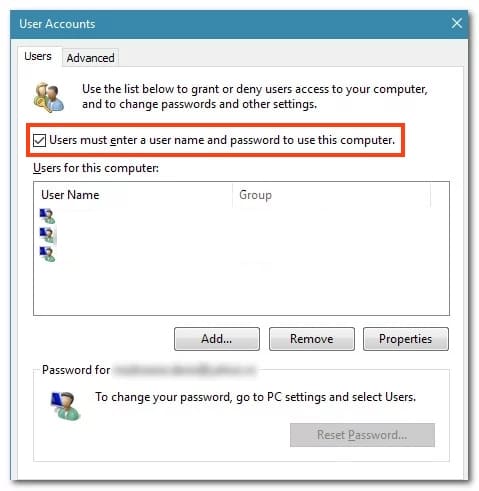






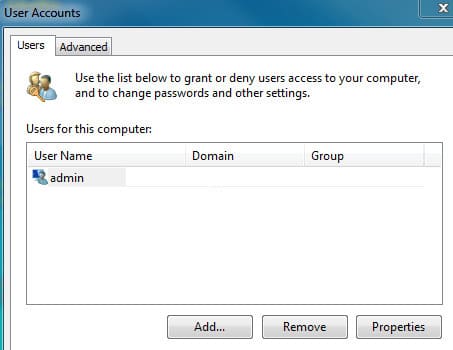
Starting with updates 20H1 in Windows 10: You may no longer have the checkbox: “Users must enter a user name and password to use this computer.” in the User Accounts menu.
Solution:
1) In the new Windows 10 updates, to enable this feature, you’ll need to turn off Windows Hello: Settings => Accounts => Sign-in options.
This switch needs to be turned off.
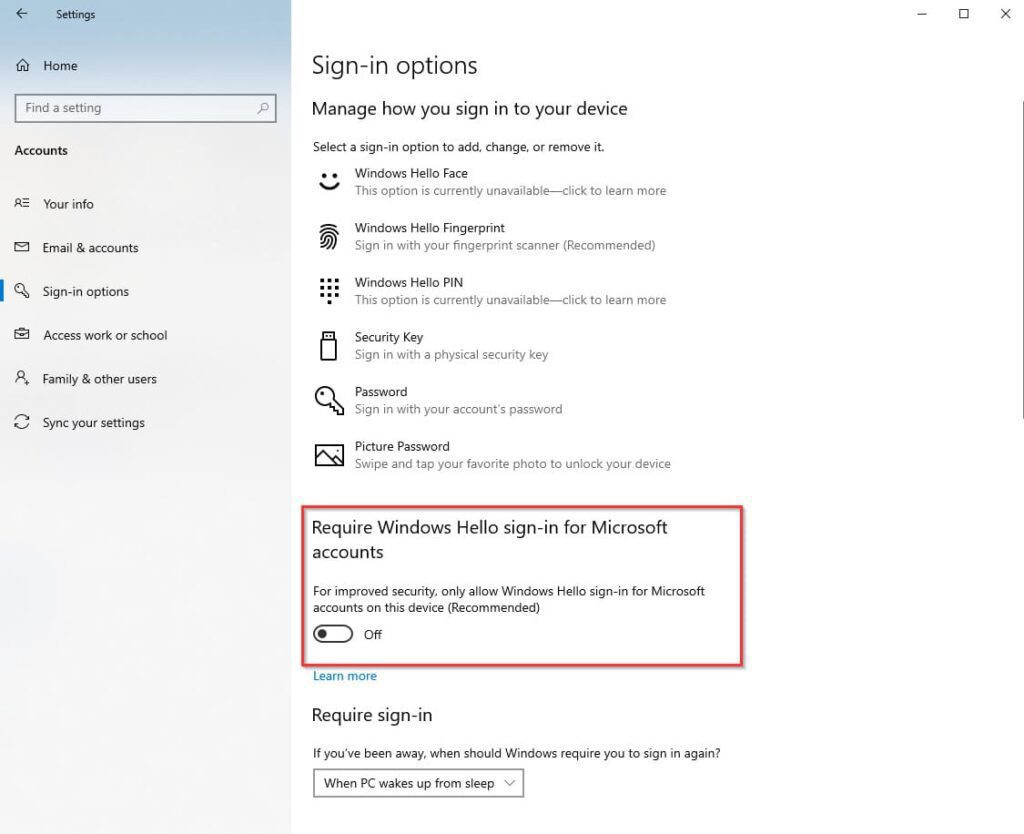
But this only works if you have a Microsoft account; if you don’t, use the recommendations below.
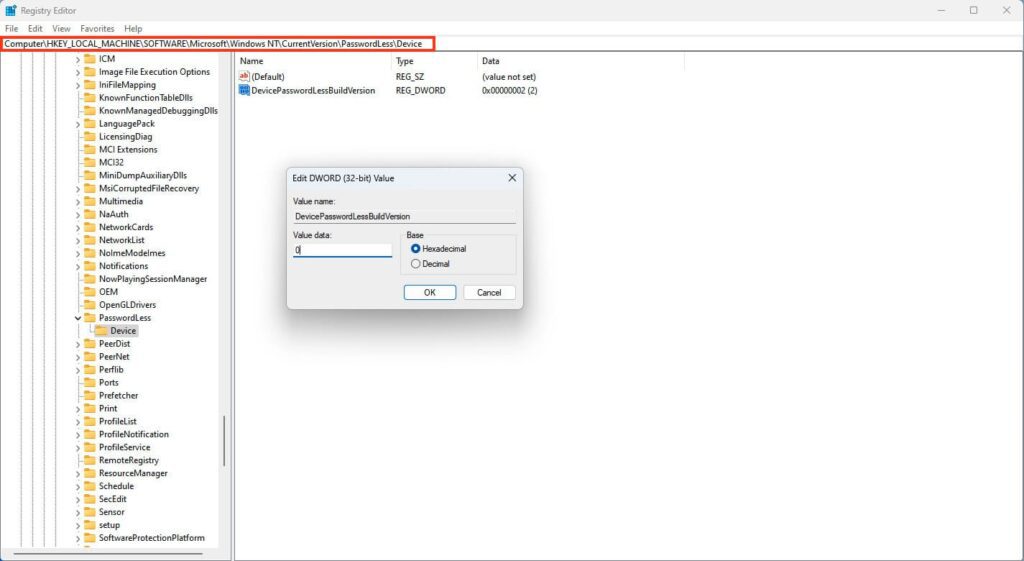
2) Make changes through the registry. Press hotkeys Win + R => type there regedit
– In the section: HKEY_LOCAL_MACHINE\SOFTWARE\Microsoft\Windows NT\CurrentVersion\PasswordLess\Device set the 0. to parameter DevicePasswordLessBuildVersion
– If you do not have such a parameter, in this case create it with the value DWORD32.
– To automate all of this, you can do it all with a single command in PowerShell. Look for PowerShell in the taskbar => Open as administrator.
Type the following command: REG ADD “HKLM\SOFTWARE\Microsoft\Windows NT\CurrentVersion\PasswordLess\Device” /v DevicePasswordLessBuildVersion /t REG_DWORD /d 0 /f
After that, the “Users must enter a user name and password to use this computer.” checkbox will return to the “User Accounts” menu.