


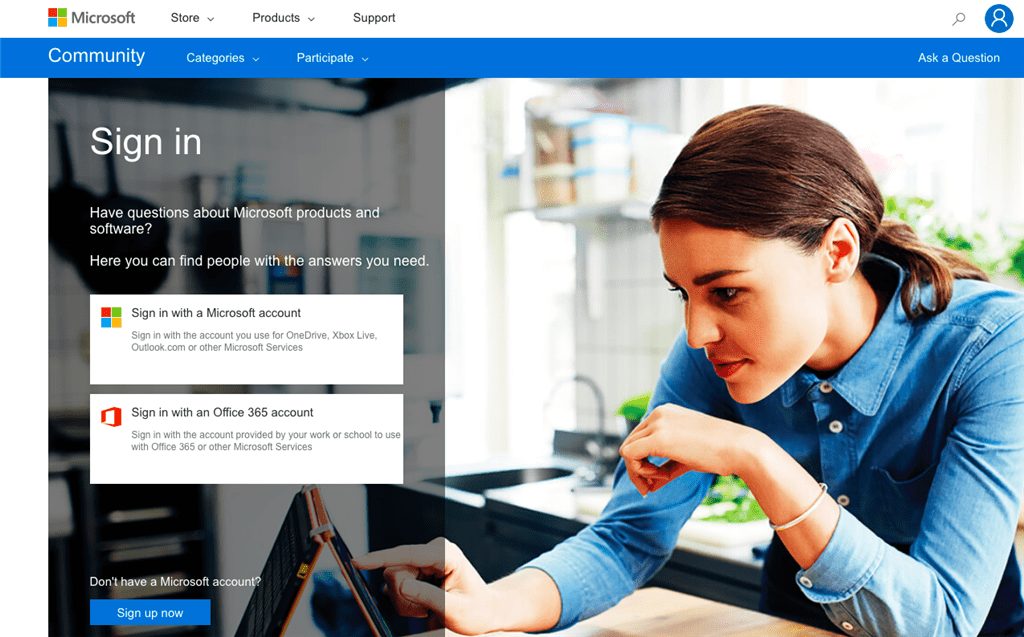
In this article, we will take a step-by-step look at how to create a Microsoft account (Sign up for Microsoft). There are two ways to create a Microsoft account:
1) Create a new account, in this case a new “email” will be created in @outlook.com or @hotmail.com domain.
2) Create a Microsoft account using your existing mailbox (any email).
Let’s look at them one by one.
– To sign up for a Microsoft account, go to signup.live.com
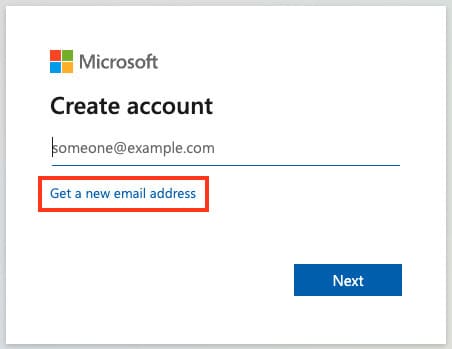
– Select the “Get a new email address” option.
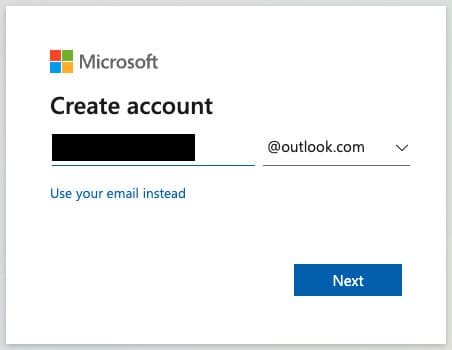
– Create a new login for your Microsoft account. You can select @outlook.com as the domain, or you can select @hotmail.com from the drop-down menu.
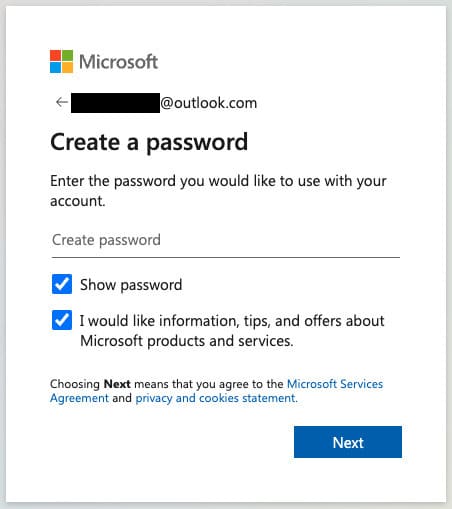
– Next, create a password for your account.
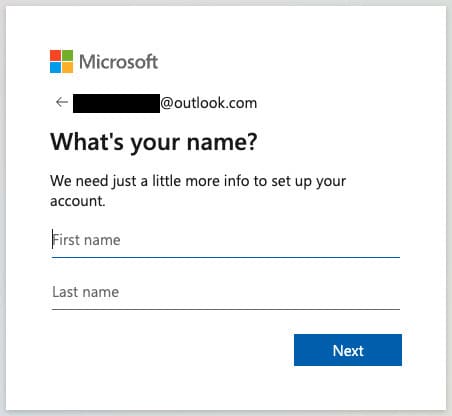
– In the next step, you will be asked to enter your first name and your last name.
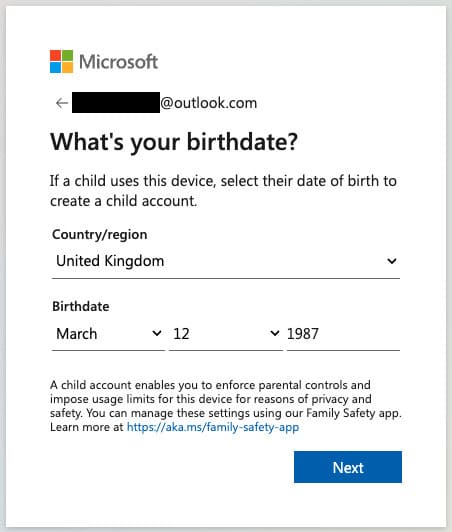
– Enter the date you were born.
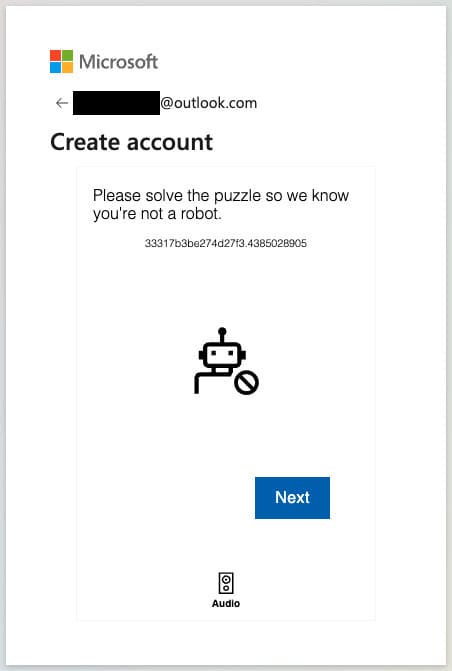
– Confirm that you are not a robot by passing a simple graphical captcha.
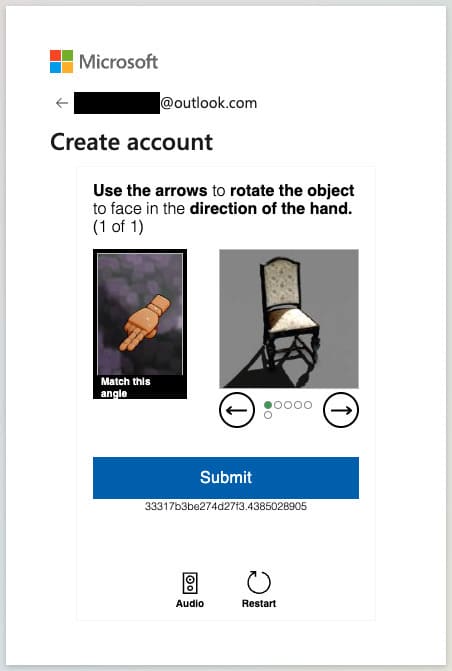
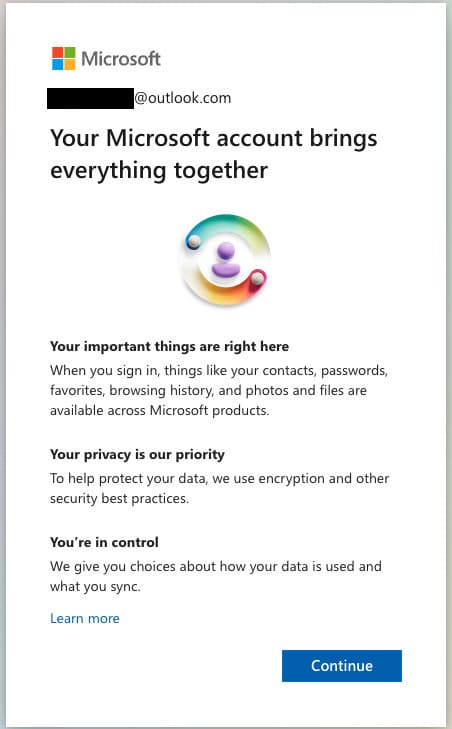
– Next, click “Continue.”
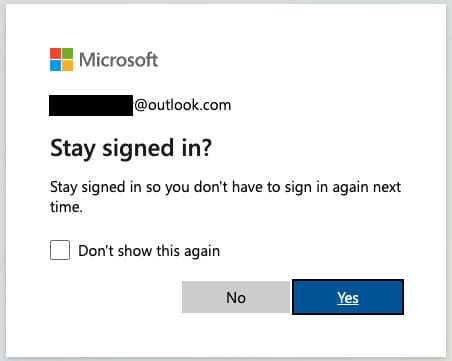
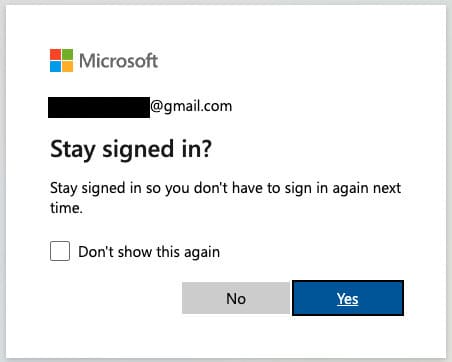
– Click “Yes” in the last step.
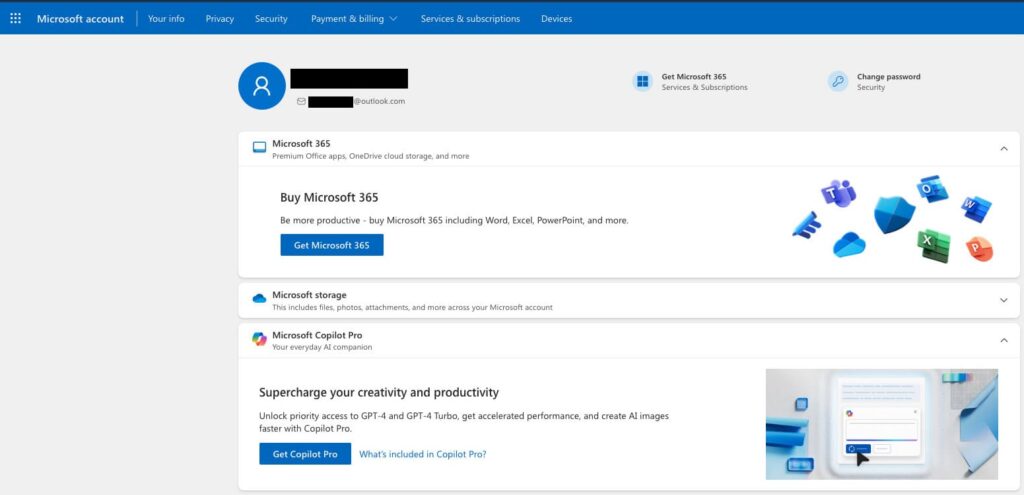
– You are now signed in to your personal Microsoft account. You can use this account to sign in to all Microsoft products.
– To sign up for a Microsoft account, go to signup.live.com
– Enter your valid email.
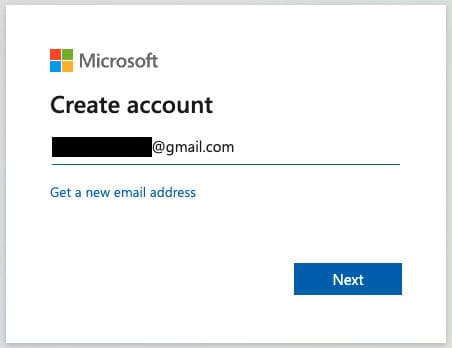
– Create a password for your new Microsoft account. It does not have to be the same as your email password.
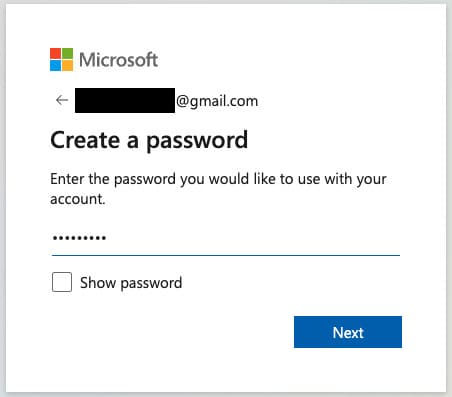
– In the next step, you will be asked to enter your first name and your last name.
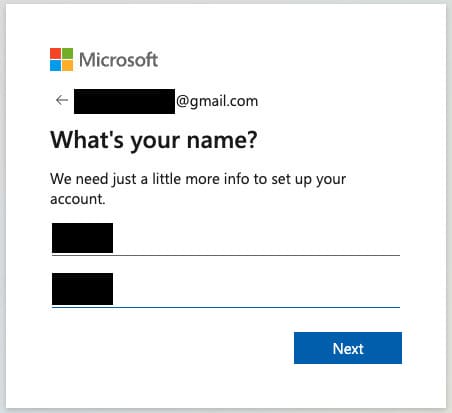
– Enter the date you were born.
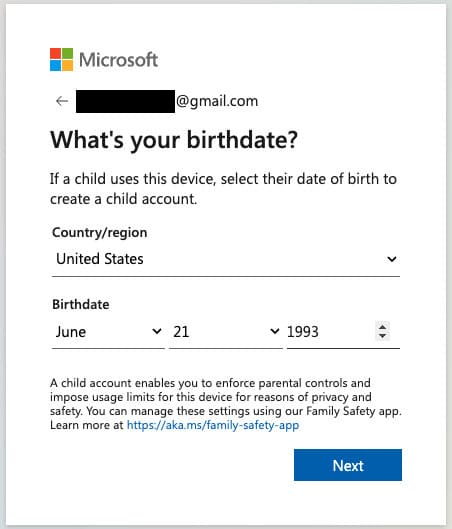
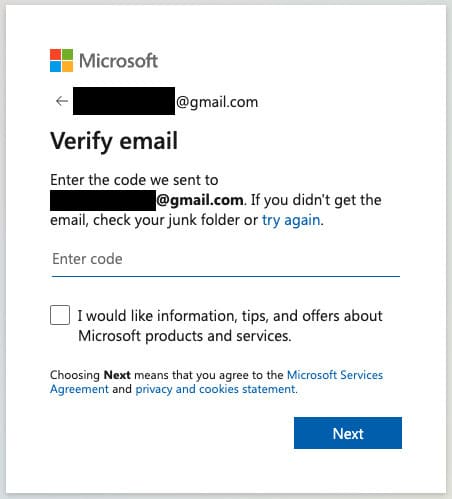
– Next, an automatic e-mail with a verification code will be sent to the e-mail address you provided. Enter the code from the e-mail into the Microsoft form.
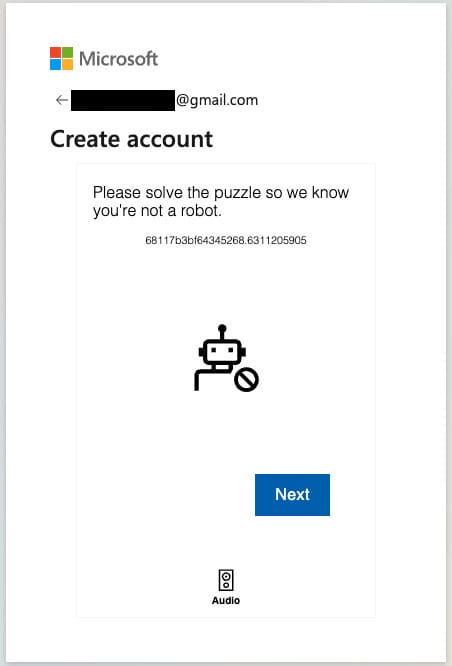
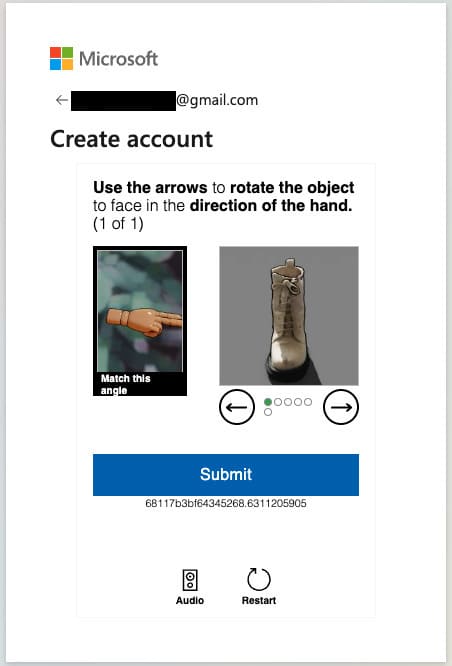
– Confirm that you are not a robot by passing a simple graphical captcha.
– Next, click “Continue.”
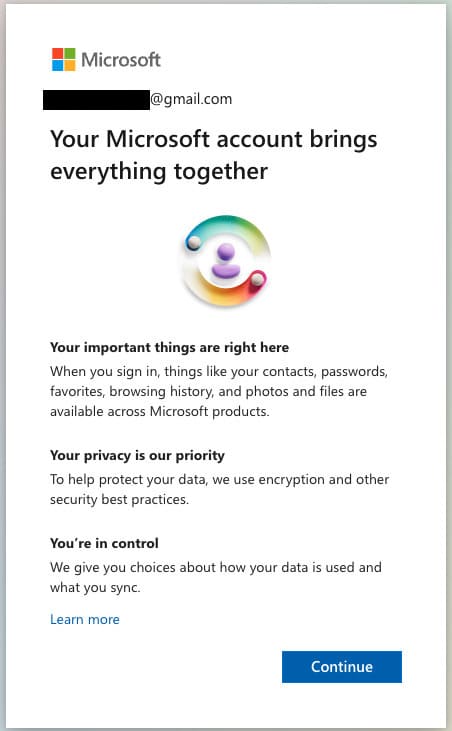
– Click “Yes” in the last step.
That’s it, you’re now signed in to your personal Microsoft account. You can use this account to sign in to all Microsoft products.